
ToDesktop CLI
The ToDesktop CLI allows you to build and deploy your electron app with native installers, auto-updates and code signing included.
For more information, visit the project landing page.
Table of contents
- Installation
- Get started
- CLI commands
- Release Webhooks
- Introspection & breakpoints
- Automating your builds (CI)
- Project configuration (todesktop.json, todesktop.js, or todesktop.ts)
- Build lifecycle hooks (package.json scripts)
- App package.json requirements
- FAQs
- Changelog
Installation
The ToDesktop CLI requires Node.js 20 or later, or Bun 1.3.14 or later.
We recommend installing the CLI as a development dependency in your Electron
project. This makes the CLI version reproducible for local development and CI,
and makes its TypeScript types available to todesktop.ts:
Run the locally installed CLI through a package script, npx todesktop,
pnpm exec todesktop, or yarn todesktop. You can instead install it globally
with npm install --global @todesktop/cli if you prefer.
To run the CLI with Bun, including in an environment where Node.js is not installed, force Bun to override the executable's Node.js shebang:
The runtime used to execute the CLI is independent of the packageManager
configured for your application on ToDesktop's remote build servers.
Get started
You can use the ToDesktop CLI to work with an Electron application in 6 steps:
Step 1: Create a ToDesktop application
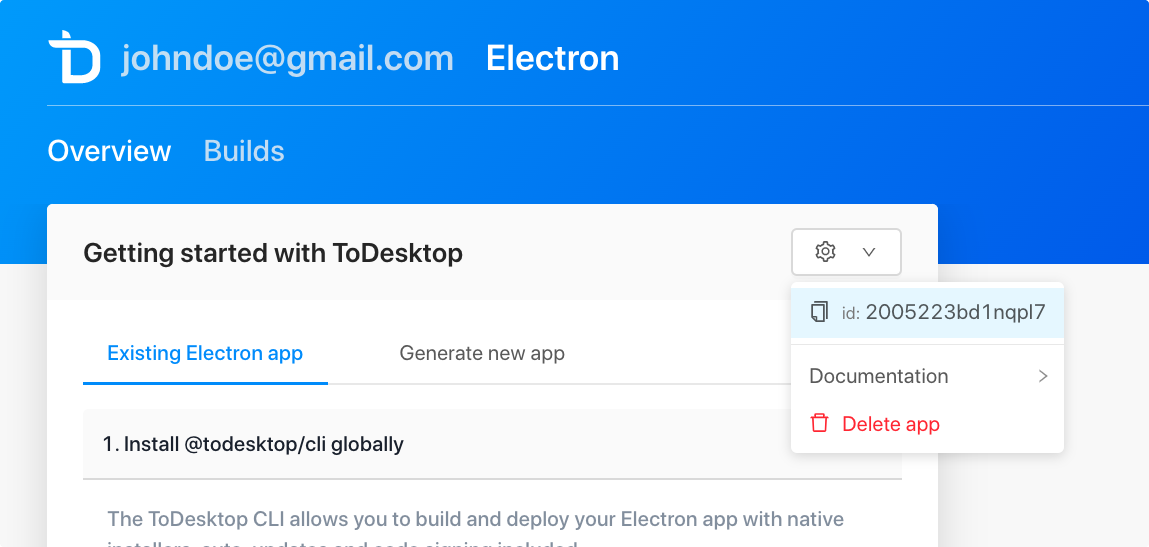
Create a ToDesktop application to link to your Electron application. This is currently done via the web interface. Copy the ToDesktop application ID to your clipboard:

Step 2: Setup your todesktop.json file
Create a todesktop.json file in the root of your Electron project.
Alternatively, you can create a todesktop.js file. This allows you to use
JavaScript to dynamically generate your configuration. For example:
You can also create a todesktop.ts file for TypeScript projects. This will add
IntelliSense and type checking in your IDE:
See Project configuration for the full list of configuration options.
Step 3: Add @todesktop/runtime as a dependency
The ToDesktop runtime package takes care of auto-updating and notifying users when an update is ready.
In your main (background process) script, require the package and call the
init function. The key is to call it right at the beginning.
Step 4: Build your app
To build your app, run the following command inside the root of your Electron project:
When prompted to login, use your email address and the accessToken from our dashboard. You can retrieve your access token by clicking on your name in the top right corner of the dashboard and selecting "Manage Access Token".
Once built, your app can then be downloaded and tested.
Step 5: Release your app
To release that build (i.e. publish new downloads and an auto-update), run:
Step 6: Run smoke test
To test whether that build works fine and can be successfully updated, run:
See the next section for more information on the available commands.
CLI Commands
The main command:
This builds your Electron app with native installers, code signing, and so on baked-in. Once the build has succeeded, you should see the following output in your terminal. These are links to the download binaries for each platform:
We also support:
-
todesktop build --code-sign=false. Run a build with code-signing and notarization disabled. This is handy for testing builds quickly. -
todesktop build --config=<path.to.config.file>. Run a build with a different configuration file (e.g.,todesktop.staging.jsonortodesktop.prod.js). -
todesktop build --async. Run a build in the background. This is handy for CI environments. -
todesktop build --dry-run. Create the exact source ZIP locally and show its file counts, grouped contents, configured upload origins (including platform overrides), sizes, and SHA-256 without creating a build or uploading anything. Add--filesto list every archive file or--jsonfor the complete machine-readable result. -
todesktop build --webhook URL. Send a POST request to the webhook URL when the build is finished. It's especially useful together with the--asyncflag. -
todesktop build --ignore-extends-errors. IgnoreidandappIdvalidation errors when extending another configuration file (.json,.js, or.ts). -
todesktop build --ignore-build-environment-errors. Log build-environment validation errors and continue the build instead of exiting. -
todesktop build --introspect. Run a build with an active introspection tunnel so you can inspect the build agent while it runs. -
todesktop build --breakpoints=<comma-separated-list>. Requires--introspect; accepts phase names (for examplebeforeInstall) and hook forms such ashook:todesktop:beforeInstall:after. Aliases and wildcards likehook:todesktop:beforeInstall:*are expanded automatically and the resolved queue is printed before the build starts. -
todesktop build --breakpoints=list. Print the catalog of supported breakpoints with descriptions. -
todesktop build --continue <buildId> --platform mac|windows|linux. Resume a paused build from another terminal using the same account that initiated it. -
todesktop build --follow-logs. Stream the build server logs to your terminal while the build runs, then exit with the build's status (non-zero if it failed). Use--platform mac|windows|linuxto choose which platform to follow (defaults tomac). Log output is written to stdout and status messages to stderr, so you can pipe the logs (e.g.todesktop build --follow-logs | grep error).--follow-logscannot be combined with--async,--introspect, or--breakpoints.--platformis only valid with--follow-logsor--continue; when using--continue, it is required.
-
todesktop release. Release a build. This will publish a new download and an auto-update for existing users. By default it shows a list of builds for you to choose from.- Use
todesktop release <id>to release a specific build by ID. todesktop release --latestwill release the latest build.- Append
--forceto skip the interactive confirmation step. - Append
--config=<path.to.config.file>to use a different configuration file. - Note: By default, apps cannot be released via the CLI. For security reasons, you can only release apps through the web UI with security token authentication. To release from the CLI or CI, enable Allow releases without a security token in your app settings. See Automating releases from CI for the complete setup.
- Use
-
todesktop builds. View your recent builds.- Use
todesktop builds <id>to view a specific build and its progress. todesktop builds --latestwill show the latest build and it's progress.todesktop builds --count=<number>will show the last<number>builds.todesktop builds --format=jsonwill output build data in JSON format.- Append
--config=<path.to.config.file>to use a different configuration file. - Append
--exitto disable dynamic pagination and exit the process once the build data has been displayed.
- Use
-
todesktop logs. Stream the build server logs for a build. Exits non-zero if the build failed.- Use
todesktop logs <id>to stream logs for a specific build by ID. todesktop logs --latestwill stream logs for the latest build.- Use
--platform mac|windows|linuxto choose which platform to stream (defaults tomac). - Append
--config=<path.to.config.file>to use a different configuration file.
- Use
-
todesktop logout. Logs you out. -
todesktop smoke-testCheck whether the build works and can be successfully updated.- Use
todesktop smoke-test <id>to test a specific build by ID. todesktop smoke-test --latestwill test the latest build.- Append
--config=<path.to.config.file>to use a different configuration file.
- Use
-
todesktop introspect [buildId]. Connect to a running build’s shell when introspection is enabled. If you omit the build ID, the CLI will prompt you to pick a build and platform.--latestconnects to the latest build with introspection enabled.--platform mac|windows|linuxselects a platform without prompting.--verboseprints detailed connection information.- Append
--config=<path.to.config.file>to use a different configuration file when selecting a build.
-
todesktop whoami. Prints the email of the account you're signed into. -
todesktop --help. Shows the help documentation. -
todesktop --version. Shows the current version of the CLI.
Global Options
The following options can be used with any command:
todesktop --config-dir <path>. Specify a custom directory for storing CLI configuration and credentials. This overrides the default system config directory. Can also be set via theTODESKTOP_CONFIG_DIRenvironment variable.todesktop --ephemeral. Do not persist any configuration or credentials to disk. All config is stored in memory only for the duration of the command. This is useful for CI environments where credentials are provided via environment variables and you don't want anything written to disk.
Introspection & breakpoints
Interactive introspection lets you open a shell on a live build agent and pause the build at deterministic breakpoints for deeper debugging.
Enable introspection on a build
- Run
todesktop build --introspectto start a build with an introspection tunnel. The CLI prints availability notices and keeps the session attached while the build runs. - Add
--breakpoints=listto print the supported pause points and their descriptions. - Provide a comma-separated list via
--breakpoints=beforeInstall,hook:todesktop:beforeInstall:after,afterPack(requires--introspect). Phase names such asbeforeInstalland hook forms likehook:todesktop:beforeInstall:beforeare validated, deduplicated, and expanded to cover aliases (for examplehook:todesktop:beforeInstall:*expands to both before/after hook breakpoints).
Working with paused builds
- When a breakpoint is hit, the CLI displays a prompt similar to
mac paused at beforeInstall (lease expires in 20m). - Use
Enterto resume to the next breakpoint,xto skip the remaining breakpoints,spaceto renew the lease (adds 10 minutes when less than 20 minutes remain), andCtrl+Cto detach without resuming. - The default lease lasts 20 minutes; inactivity triggers an automatic resume
which is surfaced as
autoResumedin the CLI output and Firestore metadata. - Only collaborators on the same app account can renew, resume, or skip breakpoints; requests from other accounts return a permission error.
Control a paused build from another terminal
- Run
todesktop build --continue <buildId> --platform mac|windows|linuxto resume a paused platform. This mirrors pressingEnterin the interactive prompt and requires that the target platform is currently paused.
Open an introspection shell
- Run
todesktop introspect [buildId]to connect to the build agent shell. If you omit the build ID, the CLI presents a list of running builds with introspection enabled followed by a platform picker that shows each platform’s breakpoint and shell status (for example⏸ mac (paused)).
Automating your builds (CI)
You may want to automate builds with your Continuous Integration (CI) provider. See Automating releases from CI for the complete workflow, including synchronous and asynchronous builds, programmatic releases, webhooks, and exit-code handling.
To authenticate the CLI, set up environment variables for
TODESKTOP_ACCESS_TOKEN and TODESKTOP_EMAIL within your CI project:
Ephemeral mode for CI
In CI environments, you may want to prevent the CLI from writing any credentials
or configuration to disk. Use the --ephemeral flag to store all config in
memory only:
You can also specify a custom config directory if needed (e.g., for isolated build environments):
Async builds with webhooks
If you need to run a build in the background, you can use the --async flag. To
get notified when the build is finished you can optionally specify a webhook URL
which will receive a POST request with the build data:
The webhook receives a POST request with the following JSON body:
Release Webhooks
You can configure a webhook URL to receive notifications when a release is published. This is useful for triggering downstream processes like deployment pipelines or notifications.
You can read about how to do this in our release webhooks guide.
Project configuration (todesktop.json, todesktop.js, or todesktop.ts)
This describes all of the possible configuration options in your
todesktop.json, todesktop.js, or todesktop.ts file.
You can use:
- A standard JSON file (
todesktop.json) for static configuration - A JavaScript file (
todesktop.js) that exports a configuration object for dynamic configuration - A TypeScript file (
todesktop.ts) that exports a configuration object with IntelliSense and support for type checking by your editor or TypeScript
Using .js or .ts files allows for dynamic configuration, such as setting
values based on environment variables or computing paths.
Note:
- Schema validation and IntelliSense for
.jsonfiles are available through the JSON schema (described under Installation) - TypeScript files (
.ts) provide IntelliSense and can be checked by your editor ortscwhen using the exportedSchematype from@todesktop/cli. The CLI transpiles the file and validates its resulting configuration, but it does not perform semantic TypeScript type checking. - TypeScript compilation requires a local installation of TypeScript in your project
To avoid confusion, the following terms will be used throughout this file:
- "Project root": this is the parent directory of your
todesktop.json,todesktop.js, ortodesktop.ts.
$schema - (optional) string
Example: https://unpkg.com/@todesktop/cli@1.12.5/schemas/schema.json, ./node_modules/@todesktop/cli/schemas/schema.json
To enable JSON validation and IntelliSense for your todesktop.json file in compatible code editors, your editor needs to know where the schema file is located. You can add a $schema property to the top of your todesktop.json file, pointing to a version of the schema. This can be a local path or a hosted URL.
- For example, if using a hosted version of the schema:
- Or if ToDesktop CLI is installed locally, you can use a local path:
appFiles - (optional) array of glob patterns
Default: ["**"]
Example: ["dist/**", "!static/**"]
This option allows you to decide which files get uploaded to be built on the ToDesktop servers. By default, all files in your app path are included in your app, except for node_modules and .git. Dependencies are installed on our build servers as there could be platform-specific postinstall steps.
If you wish to include files for the build process but exclude them in the
distribution version of your app then you should use the
filesForDistribution
property
The files must be within your appPath.
The following are always included if they exist:
/package.json/package-lock.json/yarn.lock/pnpm-lock.yaml/shrinkwrap.yaml/bun.lock/bun.lockb
Pattern syntax
- Asterisk (
*) — matches everything except slashes (path separators). - A double star or globstar (
**) — matches zero or more directories. - Question mark (
?) – matches any single character except slashes (path separators). - Exclamation mark (
!) — a glob that starts with an exclamation mark will result in any matched files being excluded.
Examples:
src/**/*.js— matches all files in the src directory (any level of nesting) that have the.jsextension.src/*.??— matches all files in the src directory (only first level of nesting) that have a two-character extension.
We use the fast-glob library under the hood.
appId - (optional) string
Default: auto-generated
Example: com.microsoft.word
Your application ID. Omit this unless you know what you're doing. It's used as the CFBundleIdentifier for MacOS and as the Application User Model ID for Windows.
WARNING: if you have deployed an application with ToDesktop and would like to change this ID, talk to us first.
appPath - (optional) string
Default: .
Example: ./dist
This is the path to your Electron application directory. Omit this unless your project setup is complicated. This is the directory that the CLI uploads.
The path can be absolute or a relative path from the project root. The directory it points to must be a valid Electron application directory; i.e.:
- It could be ran with the
electroncommand; i.e.npx electron {appPath}. - It needs to contain a valid
package.json. - The
package.jsonmust either have amainproperty pointing to a file in the directory or there must be anindex.jsat the root of the directory.
Side note: if your package.json contains a postinstall script which
references scripts, these must be accessible within the appPath directory as
only the appPath is uploaded to our servers.
bundleWorkspacePackages - (optional) object
- Default:
{"enabled":false}
Useful when your application is a monorepo (e.g. pnpm workspaces). You can configure whether the CLI bundles workspace packages alongside the app upload. When enabled, workspace dependencies referenced via workspace: or local file: specifiers are bundled with your application upload and dependency ranges are rewritten to file: paths so they install deterministically on the build servers.
- Example:
{"enabled":true}
pnpm workspace build policies
For nested pnpm apps, the CLI creates an isolated pnpm-workspace.yaml for the
uploaded app. Catalog references are resolved, and the original workspace globs
are not copied.
If the root workspace defines a build-script policy, set packageManager and
pnpmVersion:
With pnpm 11, use allowBuilds:
Inline build-script settings are preserved. pnpm 10's onlyBuiltDependencies is
supported; pnpm 11 builds using it fail with migration guidance.
onlyBuiltDependenciesFile is unsupported because its referenced file is not
uploaded. dangerouslyAllowAllBuilds is preserved only when explicitly
configured.
bytenode - (optional) object
Default: {"enabled":false}
Compile selected source files to .jsc using Bytenode during the build. Provide glob patterns relative to your appPath.
Experimental: This option may change or be removed in a future release.
bytenode.enabled - (optional) boolean
Default: false
Enable Bytenode compilation.
bytenode.files - (required when enabled) array of glob patterns
Glob patterns relative to appPath for files to compile to Bytenode.
Example:
fuses - (optional) object
Configure Electron Fuses to enable or disable certain Electron features at package time. Fuses are compile-time feature flags that cannot be changed at runtime, providing security benefits. See https://www.electronjs.org/docs/latest/tutorial/fuses for more information.
Fuses allow you to harden your Electron application by disabling features that your app doesn't need. Once a fuse is flipped at build time, it cannot be changed at runtime.
Example:
fuses.runAsNode - (optional) boolean
Controls whether the ELECTRON_RUN_AS_NODE environment variable is respected. When disabled, the env variable will be ignored. Default: true (enabled).
fuses.enableCookieEncryption - (optional) boolean
Controls whether the cookie store on disk is encrypted using OS-level cryptography. Default: false (disabled).
fuses.enableNodeOptionsEnvironmentVariable - (optional) boolean
Controls whether the NODE_OPTIONS environment variable is respected. When disabled, the env variable will be ignored. Default: true (enabled).
fuses.enableNodeCliInspectArguments - (optional) boolean
Controls whether command line arguments like --inspect are respected. When disabled, these arguments will be ignored. Default: true (enabled).
fuses.enableEmbeddedAsarIntegrityValidation - (optional) boolean
Controls whether Electron validates the integrity of the app.asar file. Requires the integrity block in the asar header. Default: false (disabled).
fuses.onlyLoadAppFromAsar - (optional) boolean
Controls whether Electron only loads the app from an asar archive. When enabled, Electron will not search for loose files. Default: false (disabled).
fuses.loadBrowserProcessSpecificV8Snapshot - (optional) boolean
Controls whether the browser process uses a V8 snapshot file located at browser_v8_context_snapshot.bin. Default: false (disabled).
fuses.grantFileProtocolExtraPrivileges - (optional) boolean
Controls whether pages loaded via file:// protocol get extra privileges. When disabled, file:// pages are more restricted. Requires Electron 29+. Default: true (enabled).
appProtocolScheme - (optional) string | string[]
Default: no protocol scheme is registered
Example: word, ["word", "excel"]
If you want to register a protocol for your application (e.g. example://) and or support deeplinking, you will need to use this option. If your desired protocol is example://, you would set "appProtocolScheme": "example". NOTE: these features also require additional application logic.
asar - (optional) boolean
Default: true
Whether to package your application's source code within an asar archive. You should only turn this off if you have a good reason to.
asarUnpack - (optional) boolean or array of glob patterns
Default: ["**/*.node"]
This option allows you to decide which files get unpacked from the asar archive. By default we unpack all native *.node files.
If you want to unpack only files that are required to be unpacked, you can set
this property to false.
You can also specify a list of glob patterns to unpack.
buildVersion - (optional) string
Default: auto-generated from build id
The build version. Maps to the CFBundleVersion on macOS, and FileVersion metadata property on Windows.
copyright - (optional) string
Default: The todesktop.json productName / ToDesktop app name.
Example: Copyright © 1995 Walt Disney
The human-readable copyright line for the app.
dmg - (optional) object
Options for customizing the macOS DMG (disk image) installer.
dmg.background - (optional) string
Default: undefined (if undefined then we
use this template).

Example: ./mac-dmg-background.tiff
The path to the DMG installer's background image. It must be a .tiff file. The resolution of this file determines the resolution of the installer window. Typically, backgrounds are 540x380.
You can generate a retina tiff background from png files using the following command:
dmg.backgroundColor - (optional) string
Default: #ffffff
The background color (accepts css colors). Defaults to "#ffffff" (white) if no background image.
dmg.iconSize - (optional) number
Default: 80
The size of all the icons inside the DMG. Defaults to 80.
dmg.iconTextSize - (optional) number
Default: 12
The size of all the icon texts inside the DMG. Defaults to 12.
dmg.title - (optional) string
Default: ${productName} ${version}
The title of the produced DMG, which will be shown when mounted (volume name). Macro ${productName}, ${version} and ${name} are supported.
dmg.contents - (optional) Array of objects
Customize icon locations. The x and y coordinates refer to the position of the center of the icon (at 1x scale), and do not take the label into account.
xnumber - The device-independent pixel offset from the left of the window to the center of the icon.ynumber - The device-independent pixel offset from the top of the window to the center of the icon.
dmg.window - (optional) object
The DMG windows position and size. In most cases, you will only want to specify a height and width value but not x and y.
xnumber - The X position relative to left of the screen.ynumber - The Y position relative to top of the screen.widthnumber - The width. Defaults to background image width or 540.heightnumber - The height. Defaults to background image height or 380.
extends - (optional) string
Default: null.
Example: ./todesktop.base.json, ./todesktop.base.js, or
./todesktop.base.ts.
This is the path to a base configuration file (.json, .js, or .ts). This
is especially useful for configuration sharing between different environments
(e.g., staging and production). The base configuration file can be a relative
path from the project root or an absolute path.
For more information about how to create a staging version of your app see: How do I create a staging version of my app?.
extraContentFiles - (optional) array of objects
Default: []
This option allows you specify files to be copied into the application's content directory (Contents for MacOS, root directory for Linux and Windows).
Each item in the array must be an object, containing a from property which is
a path to a file or directory. The path can be absolute or a relative path from
the project root. The files specified must be inside your project root. A
directory's contents are copied, not the directory itself (see example below).
The to property is optional. For a file, it specifies the file's final path
inside the content directory, including its filename. For a directory, it
specifies the destination directory for its contents.
Example:
In the example above, image.png would be copied to the root of the content
directory, whereas anotherImage.png would be copied to an images directory
at the root of the content directory. The contents of the ./static directory
would be copied to assets in the content directory (i.e.
./static/example.txt would be copied to assets/example.txt).
electronMirror - (optional) string
Default: Electron is downloaded from the main official source.
Example: https://npmmirror.com/mirrors/electron/
The base URL of the mirror to download Electron from. This may be a mirror geographically closer to you or even your own mirror which contains custom Electron builds. The version downloaded is the Electron version specified in devDependencies in your app's package.json. Alternatively you can explicitly specify an electronVersion in todesktop.json as described below.
electronVersion - (optional) string
Default: Electron version specified in devDependencies in your app's package.json
Example: 12.0.7-beta.17
The version of Electron to use. In most cases you should not specify an electronVersion property. Only specify this option if you wish to override the version that is specified in package.json.
extraResources - (optional) array of objects
Default: []
Example:
This option allows you to specify files to be copied into the application's resources directory (Contents/Resources for MacOS, resources for Linux and Windows). It works just like the extraContentFiles option, except the files go to a different directory.
fileAssociations - (optional) array of objects
Associate a file type with your Electron app.
Example:
extString | String[] - The extension (minus the leading period). e.g. png.nameString - The name. e.g. PNG. Defaults to value ofext.descriptionString - windows-only. The description.iconString - macOS and windows. Icon file name without extension. It points to ico file for Windows and icns for macOS. For example, if theiconvalue is"icons/py"then it will look for both"icons/py.ico"and"icons/py.icns"in your project directory.mimeTypeString - linux-only. The mime-type.role=Default:Editor`` String - macOS-only. The app's role with respect to the type. The value can beEditor,Viewer,Shell, orNone. Corresponds toCFBundleTypeRole.isPackageBoolean - macOS-only. Whether the document is distributed as a bundle. If set to true, the bundle directory is treated as a file. Corresponds toLSTypeIsPackage.rank=Default:Default`` String - macOS-only. Determines how Launch Services ranks this app among the apps that declare themselves editors or viewers of files of this type. The possible values are:Owner(this app is the primary creator of files of this type),Default(this app is an opener of files of this type; this value is also used if no rank is specified),Alternate(this app is a secondary viewer of files of this type), andNone(this app is never selected to open files of this type, but it accepts drops of files of this type).
filesForDistribution - (optional) array of glob patterns
Example: ["!**/node_modules/realm/android/**", "!**/design/**"]
This option allows you to explicitly exclude or include certain files in the packaged version of your app. These files are filtered after the build step which happens on the ToDesktop servers.
This is often useful for excluding large files which are installed during the build step but are not needed at runtime by your applcation.
The following are always excluded if they exist:
!**/node_modules/*/{CHANGELOG.md,README.md,README,readme.md,readme}!**/node_modules/*/{test,__tests__,tests,powered-test,example,examples}!**/node_modules/*.d.ts!**/node_modules/.bin!**/*.{iml,o,hprof,orig,pyc,pyo,rbc,swp,csproj,sln,xproj}!.editorconfig!**/._*!**/{.DS_Store,.git,.hg,.svn,CVS,RCS,SCCS,.gitignore,.gitattributes}!**/{__pycache__,thumbs.db,.flowconfig,.idea,.vs,.nyc_output}!**/{appveyor.yml,.travis.yml,circle.yml}!**/{npm-debug.log,yarn.lock,.yarn-integrity,.yarn-metadata.json}
icon - string
Example: ./appIcon.png
The path to your application's desktop icon. It must be an ICNS or PNG.
Note: to ensure the icon is never missing (e.g. this happens sometimes in
Ubuntu), set the
icon option
when creating your BrowserWindows.
id - string
Example: 2005223bd1nqpl7
Your ToDesktop application ID. This is used to identify your app. This would have been generated when you first created your ToDesktop application via the web interface.
linux - (optional) object
Example: { "category": "Utility"}
This object contains some options that only apply to the building & releasing for Linux.
Default: We have good default settings for Linux.
linux.category - (optional) string
Example: Utility
The application category.
Default: undefined
linux.icon - (optional) string
Example: ./linux-icon.png
The path to your application's Linux desktop icon. It must be an ICNS or PNG.
Default: The root icon is used.
Note: to ensure the icon is never missing (e.g. this happens sometimes in
Ubuntu), set the
icon option
when creating your BrowserWindows.
linux.imageVersion - (optional) string
Default: 0.1.4
Example: 0.1.0
The version of the Linux image that ToDesktop should use to build your app.
Linux Changelog:
0.1.0: Updated g++ → g++10, gcc → gcc10. WARNING: This compiler has been updated to a newer version that is not compatible with older versions of Linux like Ubuntu 20.04. You should probably only use this version if you know what you're doing.0.0.11: Updated git 2.25.1 → 2.47.1 node 18.18.2 → 18.20.5
linux.executableArgs - (optional) string[]
Example: --enable-features=UseOzonePlatform,--ozone-platform=x11
Additional command-line arguments to pass to the executable in the Linux .desktop file Exec line.
This is useful if your Linux app requires specific flags to run reliably. For example, some apps need Ozone platform flags for Wayland/X11 compatibility:
Note: By default, --no-sandbox is passed only when the system does not support
user namespaces (see noSandbox below). If you set executableArgs, the
sandbox handling is still applied according to the noSandbox setting.
linux.deb - (optional) object
Configuration for Debian (.deb) packaging.
linux.deb.additionalDepends - (optional) string[]
Additional package dependencies to append to ToDesktop's default .deb dependencies.
This appends to ToDesktop's default Debian dependency list:
libgtk-3-0libnotify4libnss3libxss1libxtst6xdg-utilslibatspi2.0-0libuuid1libsecret-1-0
linux.deb.depends - (optional) string[]
The list of package dependencies for the .deb package. This overwrites ToDesktop's default dependency list and linux.deb.additionalDepends.
linux.noSandbox - (optional) boolean | "probe"
Default: probe
Controls whether --no-sandbox is passed to the Electron app on Linux for deb and rpm targets. true always passes it; false never passes it; "probe" (default) detects at runtime whether user namespaces are supported and only passes it when they are not.
Note: For AppImage targets, this option requires appBuilderLibVersion set to
"latest" or 26.9.0 or later. Without this, the --no-sandbox flag will not
be passed to the AppImage launcher.
includeSubNodeModules - (optional) boolean
Default: false
Whether to include all of the submodules node_modules directories
mac - (optional) object
Default: We have good default settings for Mac.
Example: { "entitlements": "./entitlements.mac.plist" }
This object contains some options that only apply to the building & releasing for MacOS.
mac.additionalBinariesToSign - (optional) array of strings
Default: []
Example: ["./node_modules/example-package/example-file"]
Paths of any extra binaries that need to be signed. These could be files in your own app code or node_modules.
mac.category - (optional) string
Default: undefined
Example: public.app-category.productivity
The application category type, as shown in the Finder via View -> Arrange by Application Category when viewing the Applications directory.
For example, public.app-category.developer-tools will set the application
category to "Developer Tools".
Valid values are listed in Apple's documentation.
mac.entitlements - (optional) string
Default: A sane minimal entitlements file we've put together.
Example: ./entitlements.mac.plist
The path to an entitlements file for signing your application. It must be a plist file.
mac.entitlementsInherit - (optional) string
Default: No entitlements file is provided by default.
Example: ./entitlementsInherit.mac.plist
The path to a child entitlements file for signing your application. It must be a plist file.
mac.provisioningProfile - (optional) string
Default: No provisioning profile is used by default.
Example: ./mac.provisionprofile
The path to a provisioning profile for authorizing your application.
mac.extendInfo - (optional) object
Default: {}
Example: { "NSUserNotificationAlertStyle": "alert" }
Extra entries for Info.plist.
mac.icon - (optional) string
Example: ./mac-icon.png
The path to your application's Mac desktop icon. It must be an ICNS, PNG, or Apple .icon package directory.
Note: Apple .icon paths should point to the Icon Composer package directory
(for example AppIcon.icon).
Note: Apple .icon support requires appBuilderLibVersion 26.8.1 or later.
Default: The root icon is used.
mac.requirements - (optional) string
Default: No requirements file is used by default.
Example: ./requirements.txt
The path to the requirements file used when signing your application.
mas - (optional) object
Example: { "type": "development" }
This object contains options that only apply to building the application for Mac App Store.
Default: We use default development settings for Mac App Store.
mas.entitlements - (optional) string
Default: No entitlements file is provided by default.
Example: ./entitlements.mas.plist
The path to an entitlements file for signing your application. It must be a plist file.
mas.entitlementsInherit - (optional) string
Default: No entitlements file is provided by default.
Example: ./entitlementsInherit.mas.plist
The path to a child entitlements file for signing your application. It must be a plist file.
mas.provisioningProfile - (optional) string
Default: No provisioning profile is used by default.
Example: ./mas.provisionprofile
The path to a provisioning profile for authorizing your application.
mas.type - (optional) string
Default: development
Example: distribution
Whether to sign app for development or for distribution.
mas.minimumSystemVersion - (optional) string
Example: 12.0, 11.0, 10.15
The minimum macOS version required to run the app. Set to '12.0' or higher for arm64-only Mac App Store submissions.
mas.x64ArchFiles - (optional) string
Default: not defined
Example: Contents/Resources/foobar/**
Minimatch pattern of paths that are allowed to be x64 binaries in both ASAR files.
nodeVersion - string
Example: 18.12.1
The version of Node.js that ToDesktop should use to build your app.
npmVersion - string
Example: 9.8.1
The version of NPM that ToDesktop should use for installation.
bunVersion - string
Example: 1.3.6
The version of Bun that ToDesktop should use for installation.
packageJson - (optional) object
Default: {}
If you want to override the default package.json configuration, use the packageJson property. For example, you can use this to override the package name or version properties.
Example:
You can also set the version of a dependency (or devDependency), such as
Electron Builder, to null. This will remove Electron Builder from the
effective package.json that ToDesktop will use.
packageManager - (optional) string
Default: If bun.lockb or bun.lock exists, bun is used. If yarn.lock exists, yarn is used. If pnpm-lock.yaml or shrinkwrap.yaml exists, pnpm is used. Otherwise, npm is used.
Example: yarn
The package manager to use when installing dependencies. Valid values are npm, yarn, pnpm or bun.
productName - (optional) string
Default: The ToDesktop app name.
Example: Example App
The user-facing application name to pass to electron-builder. Prefer this over setting productName in your app's package.json, because Electron uses package-level productName as the runtime app name and default app data path.
pnpmVersion - string
Example: 8.10.5
The version of pnpm that ToDesktop should use for installation.
rebuildLibrary - (optional) string
Default: app-builder
The library that ToDesktop should use for rebuilding native modules. Valid values are app-builder or @electron/rebuild.
schemaVersion - number
Example: 1
This is the todesktop.json schema version. This must be 1.
snap - (optional) object
Example: { "confinement": "classic", "grade": "devel" }
This object contains some options that only apply to the building for the Snap Store.
snap.after - (optional) array of strings
Default: ["desktop-gtk2"]
Example: ["launch-scripts"]
Ensures that all the part names listed are staged before the app part begins its lifecycle.
snap.appPartStage - (optional) array of strings
Default: See snap.ts.
Example: ["-usr/lib/python*"]
Specifies which files from the app part to stage and which to exclude. Individual files, directories, wildcards, globstars, and exclusions are accepted. See Snapcraft filesets to learn more about the format.
snap.assumes - (optional) string or array of strings
Default: undefined
Example: snapd2.38
The list of features that must be supported by the core in order for this snap to install. To learn more, see the Snapcraft docs.
snap.autoStart - (optional) boolean
Default: false
Example: true
Whether or not the snap should automatically start on login.
snap.base - (optional) string
Default: core18
Example: core20
The base snap to use for building this snap.
snap.buildPackages - (optional) array of strings
Default: []
Example: ["libssl-dev", "libssh-dev", "libncursesw5-dev"]
The list of debian packages needs to be installed for building this snap.
snap.confinement - (optional) string
Default: strict
Example: classic
The type of confinement supported by the snap. devmode, strict, or classic.
snap.environment - (optional) object
Default: {"TMPDIR":"$XDG_RUNTIME_DIR"}
Example: {"TMPDIR": "$XDG_RUNTIME_DIR"}
The custom environment. If you set this, it will be merged with the default.
snap.grade - (optional) string
Default: stable
Example: devel
The quality grade of the snap. It can be either devel (i.e. a development version of the snap, so not to be published to the "stable" or "candidate" channels) or stable (i.e. a stable release or release candidate, which can be released to all channels).
snap.layout - (optional) object
Default: undefined
Example: { "/var/lib/foo": { "bind": "$SNAP_DATA/var/lib/foo" } }
Specifies any files to make accessible from locations such as /usr, /var, and /etc. See snap layouts to learn more.
snap.plugs - (optional) array containing strings and or objects
Default: ["desktop","desktop-legacy","home","x11","unity7","browser-support","network","gsettings","pulseaudio","opengl"]
Example: [ "default", { "browser-sandbox": { "interface": "browser-support", "allow-sandbox": true } }, "another-simple-plug-name" ]
The list of plugs. If list contains default, it will be replaced with the default list, so, ["default", "foo"] can be used to add a custom plug foo in addition to the default list.
Additional attributes can be specified using object instead of just name of plug:
snap.stagePackages - (optional) array of strings
Default: ["libasound2","libgconf2-4","libnotify4","libnspr4","libnss3","libpcre3","libpulse0","libxss1","libxtst6"]
Example: ["default", "depends"]
The list of Ubuntu packages to use that are needed to support the app part creation. Like depends for deb. If list contains default, it will be replaced with the default list, so, ["default", "foo"] can be used to add custom package foo in addition to the defaults.
snap.summary - (optional) string
Default: The todesktop.json productName / ToDesktop app name.
Example: The super cat generator
A sentence summarising the snap. Max len. 78 characters, describing the snap in short and simple terms.
snap.useTemplateApp - (optional) boolean
Default: true if stagePackages is not specified.
Example: false
Whether to use a template snap.
updateUrlBase - (optional) string
Default: ToDesktop's auto-update URL.
Example: https://example.com/updates
The URL to check for updates. You should only set this if you want to use your own self-hosted update server instead of ToDesktop's built-in update service. See https://www.github.com/ToDesktop/self-hosted for more information.
uploadSizeLimit - (optional) number
Default: 20
Example: 35
The max upload size (in MB). Before uploading your files to our servers, we check that the total file size is less than this number. If you are accidentally including unneccesary files in your app, check out the appPath and appFiles options.
windows - (optional) object
Example: { "icon": "./icon.ico" }
This object contains some options that only apply to the building & releasing for Windows.
Default: We have good default settings for Windows.
windows.icon - (optional) string
Example: ./icon.ico
The path to your application's Windows desktop icon. It must be an ICO, ICNS, or PNG.
Default: The root icon is used.
windows.migrationSource - (optional) object
For app-migration targets: describes how the source app was installed so the generated installer can remove the legacy installation.
windows.migrationSource.squirrelPackageName - (optional) string
Example: my-app
The Squirrel.Windows package name of the source app (for sources built with Electron Forge or Squirrel.Windows). The generated installer uninstalls and removes the legacy Squirrel installation during migration.
windows.nsisCustomBinary - (optional) object
Default: undefined
Allows you to provide your own makensis, such as one with support for debug logging via LogSet and LogText. (Logging also requires option debugLogging = true). It's not recommended to use it for production build.
Example:
Example of NSIS script which enables install logging:
windows.nsisInclude - (optional) string
Default: undefined
Example: build/installer.nsh
The path to NSIS script to customize installer.
windows.publisherName - (optional) array of strings
Default: Default to the common name from your code signing certificate.
Example: ["ABC Limited"]
The publisher name, exactly as in your code signing certificate. Several names can be provided. Defaults to common name from your code signing certificate. You should typically not include this property in your configuration unless you wish to transition to a new certificate in the future.
windows.signExts - (optional) array of strings
Default: undefined
Example: [".node"]
Additional Windows file extensions to code sign. Use this for native binaries that should be signed in addition to the default Electron Builder signing targets. Requires appBuilderLibVersion to be unset or set to 24.6.3 or later.
appBuilderLibVersion - (optional) string
Example: 22.14.13, latest
The version of app-builder-lib that ToDesktop should use for building your app. This can be a specific version, a semantic version range, or "latest". This can be useful if you need to use a specific version that includes certain features or fixes.
Note: Set this to 26.8.1 or later if you are using Apple Icon Composer assets
via mac.icon.
platformOverrides - (optional) object
Default: {}
This option allows you to specify platform-specific configurations for Windows, macOS, and Linux builds. Most top-level configuration fields available in todesktop.json can be overridden within the windows, mac, or linux objects under platformOverrides.
Example:
When a build is performed for a specific platform (e.g., Windows), the ToDesktop
CLI will first take the global configuration value for a field. If that same
field is defined within platformOverrides.windows, the platform-specific value
will be used instead.
In the example above:
- For Windows builds:
appIdwill bemyapp.windows.id.copyrightwill beCopyright © My Company (Windows).
- For macOS builds:
appIdwill bemyapp.mac.id.- The
mac.categorywill bepublic.app-category.developer-tools.
- For Linux builds:
appIdwill remainmyapp.global.id(as it's not overridden for Linux).copyrightwill beCopyright © My Company (Linux).
- For any other properties not specified in the platform override, the global value will be used.
This is particularly useful for settings like appId, copyright, or
platform-specific configurations within the windows, mac, or linux blocks
(e.g., mac.category, windows.icon).
The fields that cannot be overridden using platformOverrides are:
id(the ToDesktop application ID)icon(the main application icon, though platform-specific icons likewindows.iconormac.iconcan be overridden)schemaVersionextendsplatformOverridesitself
targetOverrides - (optional) object
Default: {}
Override extra resources and content files for a specific operating system and architecture. A target-specific list replaces the platform or base list for that target.
Use targetOverrides when an application needs a different resource for each
architecture of the same operating system. For example, this packages only the
matching native helper executable in each macOS app:
The selected executable is available in the packaged app at
path.join(process.resourcesPath, "cli", "helper").
Target-specific values take precedence over platformOverrides, which take
precedence over top-level values. targetOverrides currently supports
extraResources and extraContentFiles.
When either list is present for one architecture, define that list for every
architecture enabled for the platform. The lists must package the same relative
paths, meaning corresponding entries must use the same to value and source
file or directory name. Their from paths can differ.
Build lifecycle hooks (package.json scripts)
Sometimes you want to do something before or during the build process. For example, you might want to run a script before the build starts, or you might want to run a script after the files have been packaged. Our lifecycle hooks provide a way to do this.
To specify a script, add a scripts property to your package.json file. The
key is the name of the script (prefixed by todesktop:), and the value is the
path to the script.
When writing your script, you can follow this template:
Every hook receives these arguments:
pkgJsonPath- string - the path to the app'spackage.jsonfilepkgJson- object - the parsedpackage.jsonappDir- string - the path to the app directoryhookName- string - the name of the hook being run
Execution order and frequency
Each target platform is built independently, so this sequence is repeated for each selected platform:
todesktop:beforeInstallruns once after the application source is extracted and before its dependencies are installed.- ToDesktop installs the application's dependencies.
todesktop:beforeBuildruns once for each target architecture, immediately before Electron Builder rebuilds native dependencies for that architecture.- Electron Builder packages the application.
todesktop:afterPackruns once for each package context Electron Builder produces. This is normally once per target architecture; a universal macOS package has auniversalcontext. It runs before Electron fuses, code signing, and installer creation.
Hook functions are awaited. If a hook throws or returns a rejected promise, the build fails.
todesktop:beforeBuild - (optional) path to script
Example: ./scripts/beforeBuild.js.
The path to a script that will run before dependencies are rebuilt for target architectures. In addition to the common hook arguments, it receives:
appId- string - the ToDesktop application IDappPkgName- string - the app's package nameshouldCodeSign- boolean - whether the app will be code signedelectronVersion- string - the Electron version being builtplatform- object - the Electron Builder target platformarch- string - the target architecture, such asx64orarm64
Example script:
todesktop:beforeInstall - (optional) path to script
Example: ./scripts/beforeInstall.js.
The path to a script that will run before the application's dependencies are installed.
This hook receives only the common hook arguments listed above.
Example script:
todesktop:afterPack - (optional) path to script
Example: ./scripts/afterPack.js.
The path to a script that will be run after the app has been packed (but before it has been transformed into a distributable installer format and signed).
In addition to the common hook arguments, this hook receives:
appPkgName- string - the app's package nameappId- string - the ToDesktop application IDshouldCodeSign- boolean - whether the app will be code signedoutDir- string - the path to the output directoryappOutDir- string - the path to the app output directorypackager- object - the Electron Builder platform packagerelectronPlatformName- string - the target platform nametargets- array - the targets for this packagearch- number - the architecture of the app.ia32 = 0,x64 = 1,armv7l = 2,arm64 = 3,universal = 4.
Example script:
App package.json requirements
namemust be a non-empty string.versionmust be a valid semantic version.homepagemust be set.dependenciesmust include@todesktop/runtime. Do not put@todesktop/cliindependencies; install it as a development dependency.devDependenciesmust include Electron as either an exact version without^or~, or a pnpmcatalog:reference.authormust be either a string containing an email address, such as"Your Name <you@example.com>", or an object with stringnameandemailproperties. The email address must be valid.
Recommendations for app package.json
- You should set the
productNameproperty intodesktop.json. Avoid setting top-levelproductNamein your app'spackage.jsonunless you also want Electron's runtime app name and default app data path to use that value.
FAQs
How do I bundle different files for each platform or architecture?
Use platformOverrides to select files
by operating system, or targetOverrides
to select files by operating system and architecture.
One of my dependencies is a private package. How do I safely use it with ToDesktop CLI
ToDesktop builds run in a CI-like environment. Follow npm's guidance for using private packages in CI/CD.
To summarize:
- On npm's website, create a granular access token for your builds. Give it read-only access to only the packages or scopes the build requires, and use the shortest practical expiration.
- In ToDesktop's web UI, go to Settings > Build and Deploy.
- Add an environment variable named
NPM_TOKENwhose value is the granular access token. - Create an
.npmrcfile in the root of your project containing:
- Add
.npmrcto theappFilesarray intodesktop.json, for example"appFiles": [".npmrc"].
Keep the literal ${NPM_TOKEN} placeholder in .npmrc. Never put the token
itself in that file or commit it to source control.
How can I specify a specific yarnVersion for use with my app?
By default, ToDesktop uses version 1.x.x of Yarn if a yarn.lock file is
present in your project. You can override this by creating a .yarnrc.yml file
in your project directory and specifying the yarnPath property to point to
your specified version of yarn:
This can be done automatically by running yarn set version x.x.x from within
your project directory. This will create a .yarnrc.yml file and a
corresponding .yarn/releases/yarn-x.x.x.cjs that the yarnPath property
points to. This will also add a packageManager field in your package.json
with a value of yarn@x.x.x
It's important to ensure that the .yarn folder is included in your build. If
you had previously changed your todesktop.json's
appFiles property from its
default glob implementation of **, then please ensure that it includes the
.yarn directory:
Example: [".yarn/**", ".yarnrc.yml", "...include your other changes here..."]
You will want to exclude the .yarn directory in the distribution version of
your app. You can use the
filesForDistribution
property to achieve this:
Example: ["!.yarn/**", "!.yarnrc.yml"]
How do I create a staging version of my app?
ToDesktop CLI supports the concept of a staging version of your app. This is useful if you want to test your app before releasing it to the public. To create a staging version of your app, you need to do the following:
-
Create a new app in ToDesktop's web UI.
-
Create a new configuration file, for example
todesktop.staging.jsonortodesktop.staging.js. -
Add the following to your staging configuration file (e.g.,
todesktop.staging.json):
- Then in your package.json, you could do something like this:
Now you can run npm run todesktop-build to build the production app. Or you
can run npm run todesktop-staging-build to build the staging app.
I want ToDesktop to compile my typescript/react/whatever on ToDesktop Servers
No problem, this can be achieved with a
postInstall script in
combination with ToDesktop's TODESKTOP_CI and
TODESKTOP_INITIAL_INSTALL_PHASE environment variables.
First, let's create a file called todesktop-postinstall.js or something
similar in the root of your app (alongside pkckage.json). This file is going
to run a script to compile typescript after your dependencies have been
installed. It could look something like this
Next, add the following to your package.json:
Now, when we build your app on ToDesktop servers, it will also run your custom
build script after all dependencies have been installed.
Changelog
1.28.1
- Print the build and prospective download URLs when
todesktop build --asyncqueues a build, making CI output directly actionable. - Document the GCC 13 Linux build image as the default for new builds.
- Failed build preparations now retain their error details and appear as failed builds in the dashboard instead of disappearing.
1.28.0
- Allow extra resources and content files to be selected by operating system and architecture.
- Preserve pnpm workspace build policies when bundling workspace packages for desktop builds.
1.27.1
- Fix platform-specific extra resources and content files so override-only files are uploaded and packaged for the correct operating system, including same-named binaries across platforms. Builds now reject unsafe or colliding extra-file destinations and explain when an older CLI omitted platform override files.
- Support Bun and Yarn workspace catalogs in remote builds.
1.27.0
- Add support for running ToDesktop CLI builds with Bun while retaining upload progress and retry behavior.
1.26.1
- Resolve pnpm catalog references in peer dependencies when bundling workspace
packages, preventing remote npm installs from receiving unsupported
catalog:URLs.
1.26.0
- Add app migration to ToDesktop.
An existing Electron app can now move its installed user base over to a
ToDesktop app by shipping one final update through its current update channel.
Declare the migration with
todesktop.init({ migration: { targetAppId: "your-todesktop-app-id" } })(or atodesktop-migration.jsonfile in the app's resources); the installed app then updates in place into the ToDesktop build and updates normally from then on. Supported on Windows, macOS (same signing team), and Linux (AppImage), with any build tooling — including Electron Forge. Apps originally installed with Squirrel.Windows can have the legacy installation cleaned up automatically viawindows.migrationSource.squirrelPackageNameintodesktop.json. See the@todesktop/runtimeREADME for the full migration guide. - Add CLI support for following build logs.
todesktop build --follow-logsstreams the build server logs live while a build runs, and a newtodesktop logs [id] [--latest] [--platform]command streams logs for a running build or prints them for a finished one. Build server logs are captured and stored (with secret redaction) so they can be followed from the CLI, and thegetAzureLogscallable was renamed togetBuildLogsto reflect that it no longer serves only Azure logs.
1.25.6
- Add a self-serve "Programmatic releases" toggle to app settings. Users can now
enable or disable releasing without a security-token tap directly from the
dashboard; changing the setting is itself authorized by a security-token tap.
When
todesktop releaseis blocked because programmatic releases are disabled, the CLI now explains the setting and links to the app-settings page where it can be enabled.
1.25.5
- Add
windows.signExtsso Windows builds can opt in to signing additional file extensions such as.node.
1.25.4
- Pin Azure builds to known-good Node.js versions when customers omit a version or request a floating major version.
1.25.3
- Allow apps that are members of a monorepo workspace to pass build validation when the package manager lockfile lives at the workspace root rather than in the app directory.
1.25.2
- Allow Electron apps to set
productNameintodesktop.jsonso ToDesktop can use the user-facing app name during packaging without changing Electron's runtime app data path.
1.25.1
- Add build environment validation before remote builds to catch incompatible Node.js and package manager configurations, with an escape hatch for builds that need to proceed anyway.
1.25.0
- Add support for
mac.provisioningProfileso macOS builds can include provisioning profiles for profile-backed entitlements such as APNs.
1.24.0
- Add
"probe"value tolinux.noSandboxoption."probe"is now the default behavior: at runtime, it detects whether the host supports Linux user namespaces (unshare -Ur) and only passes--no-sandboxwhen they are not available. SetnoSandbox: trueto always pass--no-sandbox(previous default behavior), ornoSandbox: falseto never pass it. - Fix CLI release metadata so Changesets can prepare releases that include CLI updates.
1.23.2
- Fix CLI validation so apps without an explicit
appPathstill reject invalid Electron version ranges.
1.23.1
- Improved CLI error messages for invalid build IDs and other common failures so they are clearer and expose less internal detail.
- Allow using
appBuilderLibVersion: "latest"intodesktop.jsonduring builds.
1.23.0
- Add macOS Icon Composer
.iconpackage support viamac.icon - Allow choosing the latest app-builder-lib version in
todesktop.json. - Clean up failed builds by deleting the build record when upload fails.
1.22.2
- Fix cases when build cancelling doesn't work as expected
1.22.1
- Improved build introspection so the CLI passes app context for faster session startup and invited teammates can connect without tunnel auth permission errors.
1.22.0
- Added support for custom deb package dependencies via
linux.deb.dependsin todesktop.json
1.21.0
- Add
linux.executableArgsconfiguration option for passing additional command-line arguments to the Linux executable.
1.20.4
- Fix
whoamicommand not working when authenticated via environment variables (TODESKTOP_EMAIL and TODESKTOP_ACCESS_TOKEN)
1.20.3
- Fix
whoamicommand
1.20.2
- Fix pnpm catalog references not being resolved when
bundleWorkspacePackages is enabled but no workspace packages are bundled. This
ensures apps using only
catalog:dependencies (withoutworkspace:*dependencies) can build correctly with Bun and other package managers.
1.20.1
- Use todesktopRuntimeVersionUsed instead of todesktopRuntimeVersionSpecified for smoke test
1.20.0
- Add support for Electron Fuses configuration
- Add Bun package manager support
1.19.0
- Add
todesktop build --introspectflag andtodesktop introspect [buildId]command for interactive shell access to in-progress builds - Add
--config-dirand--ephemeralglobal flags for custom config storage
1.18.3
- Add support for pnpm workspace catalogs in workspace bundling
1.18.2
- feat(mas): add
mas.minimumSystemVersionconfig option
1.18.0
- Add support for bytenode compilation
v1.17.1
- Fix:
windows.iconnow accepts.icofiles without triggering schema validation errors.
v1.17.0
- Add support for
bundleWorkspacePackagesin config to specify whether the CLI bundles workspace packages alongside the app upload.
v1.15.2
- Improved error handling in releaseBuild function
v1.15.1
- Update dependencies to latest non-breaking versions.
v1.15.0
- Add support for
todesktop.tsconfiguration file with full TypeScript type checking and IntelliSense. - Export
Schematype from@todesktop/clifor TypeScript configuration files. - TypeScript compilation uses user's local TypeScript installation (no production dependencies added).
v1.14.0
- Add support for
todesktop.jsconfiguration file for dynamic configurations. - Upgrade to Firebase v11.
- Update Node.js engine requirement from >=12 to >=16.
v1.13.0
- Add support for
platformOverridesin config to specify platform-specific overrides for app configuration - Add support for
$schemain config to enable JSON schema validation and IDE intellisense
v1.12.5
- Fix: Removed invalid React Hook call in
BuildCommandthat caused errors.
v1.12.3
- Allow
catalog:protocol (used by PNPM) for electron dependency version inpackage.json.
v1.12.2
- Fix: Update
appFilesto not error when no*.jsfiles are found (but*.tsfiles are present)
v1.12.1
- Remove sensitive data when logging to
main.log
v1.12.0
- Add support for custom
updateUrlBasein config to specify a custom auto-update URL
v1.11.5
- The build ID is now logged on the CLI when in CI mode
v1.11.4
- Add support for
beforeBuildhook.
v1.11.3
- Fix:
linux.imageVersionnow supports any string, not just semver.
v1.11.2
- Stop erroring in cases where
appIdis not defined in an extendedtodesktop.json.
v1.11.1
- You can now specify
linux.imageVersionto explicitly set the version of the Linux image that ToDesktop should use to build your app.
v1.11.0
- Add additional
idandappIdvalidation when extending anothertodesktop.jsonfile. Can be disabled with the--ignore-extends-errorsflag.
v1.10.5
- Add support for
snap.basein snap configuration - Fix required JSON validation when extending another json file
v1.10.4
- Add support for additional token verification when cancelling smoke test
v1.10.3
- Update Readme to include instructions on
todesktop.jsonVSCode/Cursor validation
v1.10.2
- Add support for JSON validation and Intellisense of todesktop.json files
- Fix: format error properly when attempting log in with enviornment variables
v1.10.1
- Fix: add JSON schema for missing
todesktop.jsonproperties
v1.10.0
- Throw error if unsupported properties are provided in
todesktop.json
v1.9.8
- Chore: bump dependencies
- Add support for
windows.publisherName
v1.9.7
- Add support for additional token verification
v1.9.6
- Add support for
mas.x64ArchFilesin config. - Fix: Build is only recognised as ongoing if it was created in the last 24 hours.
- Add support for
mac.entitlementsInheritin config.
v1.9.4
- Fix: Mac URL download links are now formatted correctly.
v1.9.3
- Add support for
mas.entitlementsin config. - Add support for
mas.entitlementsInheritin config. - Add support for
mas.provisioningProfilein config. Removedmac.provisioningProfileas a result.
v1.9.2
- Add support for
mas.typein config. - Add support for
mac.provisioningProfilein config. - Add support for specifying
buildVersionin config.
v1.9.1
- Add support for
includeSubNodeModulesin config.
v1.9.0
- You can now specify
@electron/rebuildas a customrebuildLibraryin your configuration file.
v1.8.1
- Revert support for
yarnVersionin config. Instead use.yarnrc.ymlfile to specify yarn version.
v1.8.0
- Add support for
--webhookflag fortodesktop buildcommand - Add support for
--asyncflag to run a build in the in the background - Add support for specifying custom
yarnVersionin the configuration file - Add support for specifying custom
pnpmVersionin the configuration file
v1.7.7
- Report errors when S3 upload fails and retry 3 times
v1.7.6
- Add support for multiple app protocol schemes
v1.7.5
- Add support for specifying custom
npmVersionin the configuration file - Add support for bundling a requirements file for Mac (
mac.requirements)
v1.7.4
- Fix: Linux/Windows platform links no longer have mac/zip/[arch] added to the end of the download URL
v1.7.3
- Add asar configuration support
v1.7.1
- Add support for specifying custom
appBuilderLibVersionin the configuration file - Show suggestion to run a Smoke Test when releasing an untested build
v1.7.0
- Add
todesktop smoke-testcommand
v1.6.3
- Add support for specifying custom
windows.nsisCustomBinaryin the configuration file
v1.6.2
- Add support for specifying custom
nodeVersionin the configuration file
v1.6.1
- Add support for specifying
windows.nsisIncludein the configuration file
v1.6.0
- Codebase refactored and converted to typescript
v1.5.1
- Add support for
--exitflag fortodesktop builds.
v1.5.0
- Add support for
todesktop builds --format=json. - Add support for
todesktop builds --count=<number>.
v1.4.3
- Fix for uploading correct package.json when using the
packageJsonoverride.
v1.4.2
- Allow setting dependencies in
packageJsonto null.
v1.4.1
- Add stage support to
releaseandbuildscommands.
v1.4.0
- Adds
extendsandpackageJsonfields to the configuration file. - Added
--configoption to pass a different configuration file.
v1.3.0
- Added support for delegated users and teams.
v1.2.1
- Fix: When the build is finished the download link is now an Apple Silicon link if you are on an Apple Silicon Mac.
v1.2.0
- Add support for
linux.noSandboxconfiguration option. - Fix Resolutions for Yarn 2+.
1.1.2
- Add support for
asarUnpackconfiguration option.
v1.1.0
- Add support for
beforeInstallandafterPackhooks.
v1.0.0
- Feature: Support multiple concurrent builds
- Enhancement: Switched to presigned uploads (removes AWS dependency)
- Fix: Fixed package resolution for Ink
- Add PNPM support